AI Agent
The AI Agent is an integrated intelligence layer that assists SOC analysts during incident investigation. It can explain alerts, assess risk, extract IOCs, suggest remediation steps, and invoke external security tools via the Model Context Protocol (MCP).
Security note: Never share API keys, passwords, tokens, or other sensitive credentials in screenshots, documents, or chat messages.
Configuration
Navigation
Administration → AI Assistant
General settings are stored in the browser’s local storage. MCP tools and Skills configurations are stored on the server.
General Settings
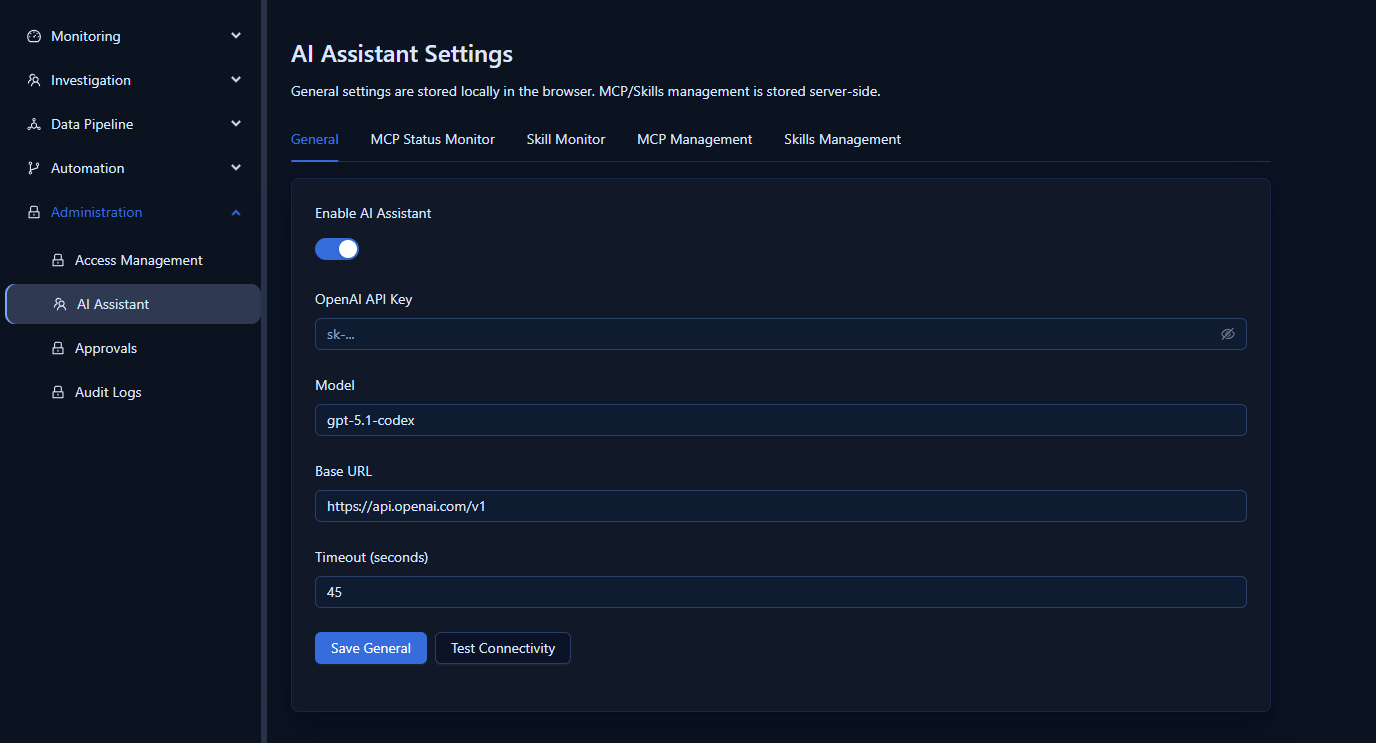
| Setting | Description |
|---|---|
| Enable AI Assistant | Master toggle — must be on for AI features to appear in ticket detail views |
| OpenAI API Key | An OpenAI-compatible API key provided by your administrator |
| Model | Model identifier (e.g., gpt-5.4) |
| Base URL | API endpoint URL (e.g., https://api.openai.com/v1) |
| Timeout | Request timeout in seconds (default: 45) — increase for slower models |
After filling in all fields:
- Click Test Connectivity to verify the model endpoint is reachable and the key is valid.
- Click Save General to persist the settings in the browser.
If the connectivity test fails, check: Base URL, API key, model name, and network access from your browser to the endpoint.
MCP Management
MCP (Model Context Protocol) tools extend the AI Agent’s capabilities by allowing it to call external services and retrieve structured context during analysis.
Navigation: Administration → AI Assistant → MCP Management
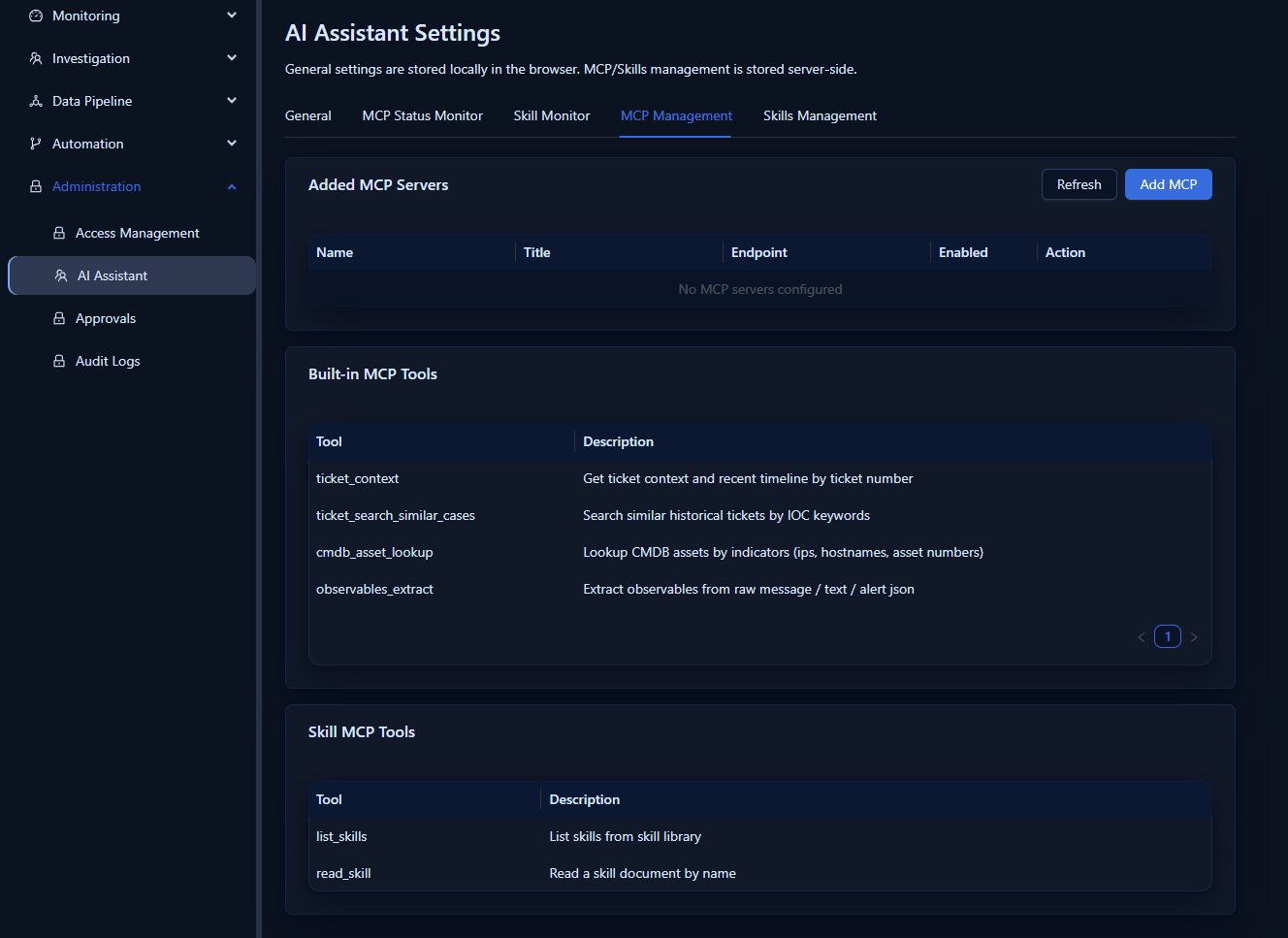
Built-in MCP Tools
The platform ships with the following built-in tools:
| Tool | Description |
|---|---|
ticket_context |
Retrieves full context of the current ticket (alerts, labels, work logs) |
ticket_search_similar_cases |
Searches for historically similar tickets by title and observables |
cmdb_asset_lookup |
Looks up asset metadata from the CMDB by IP, hostname, or user |
observables_extract |
Extracts and normalizes indicators (IPs, domains, hashes) from raw text |
Adding an MCP Server
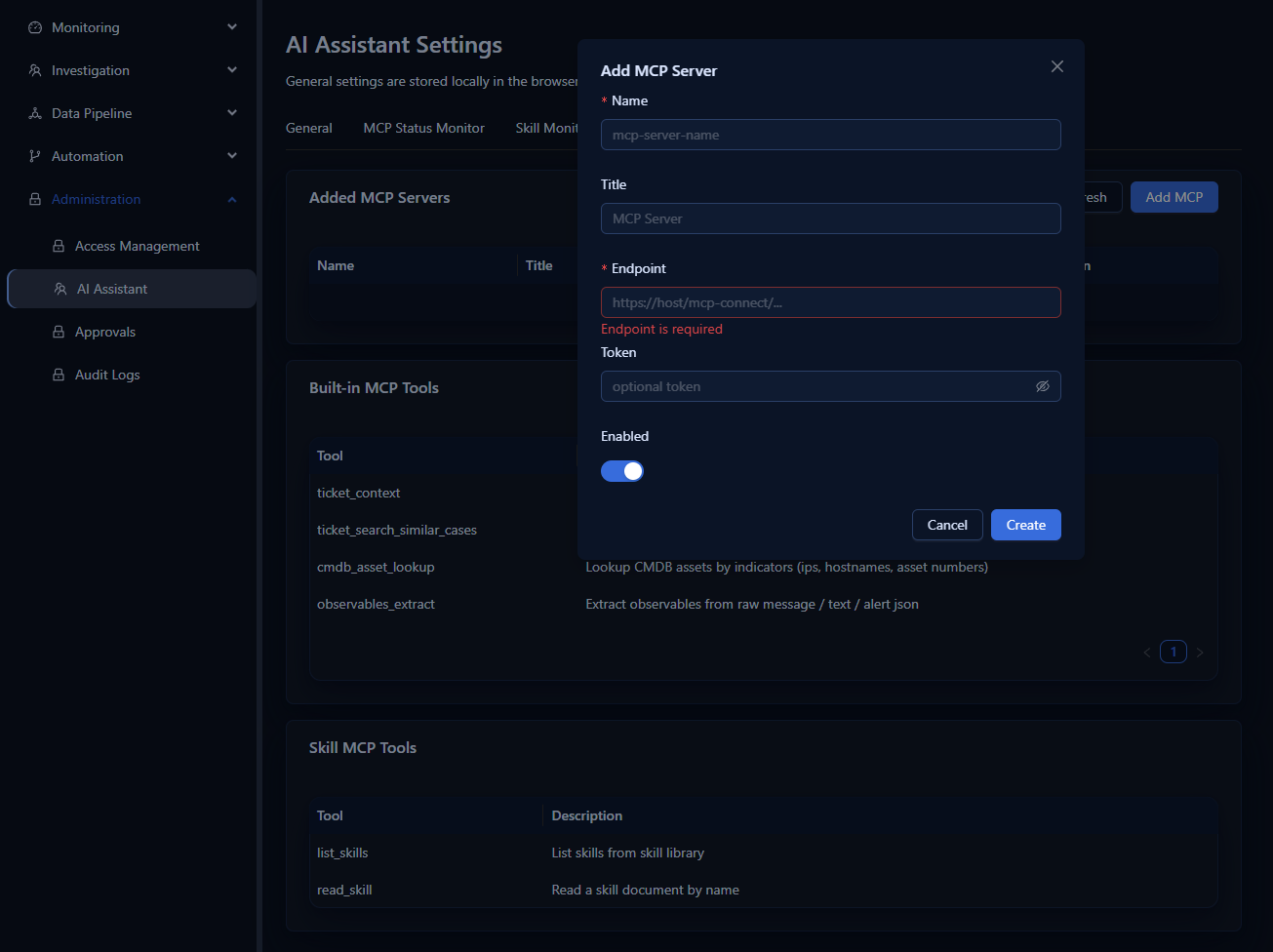
- Click Add MCP in the MCP Management section.
- Fill in the server details:
- Name — display name for the MCP server
- URL — MCP server endpoint
- Description — what tools this server provides
- Click Save.
MCP Status Monitor
The MCP Status Monitor tracks the operational health of all MCP tool invocations.
Navigation: Administration → AI Assistant → MCP Status Monitor
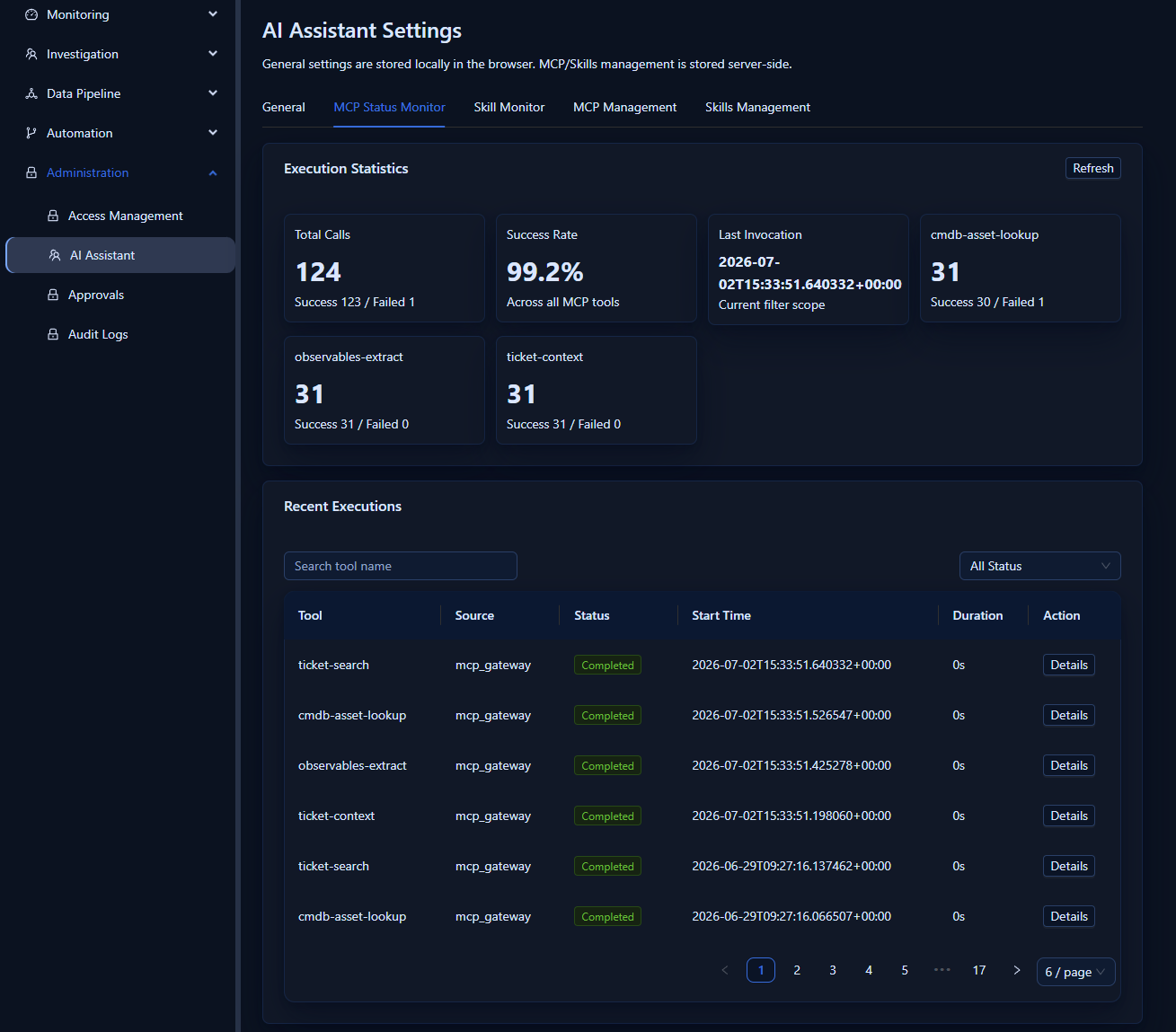
| Metric | Description |
|---|---|
| Total Calls | Cumulative MCP tool invocation count |
| Success Rate | Percentage of successful calls |
| Last Called | Timestamp of the most recent invocation |
| Recent Executions | Detailed log of the most recent calls with status and error messages |
Use this view to diagnose whether the AI Agent is successfully invoking context tools during analysis.
Skills Management
Skills are executable procedures that the AI Agent can invoke to perform structured tasks (e.g., enrichment lookups, automated reports, response actions).
Navigation: Administration → AI Assistant → Skills Management
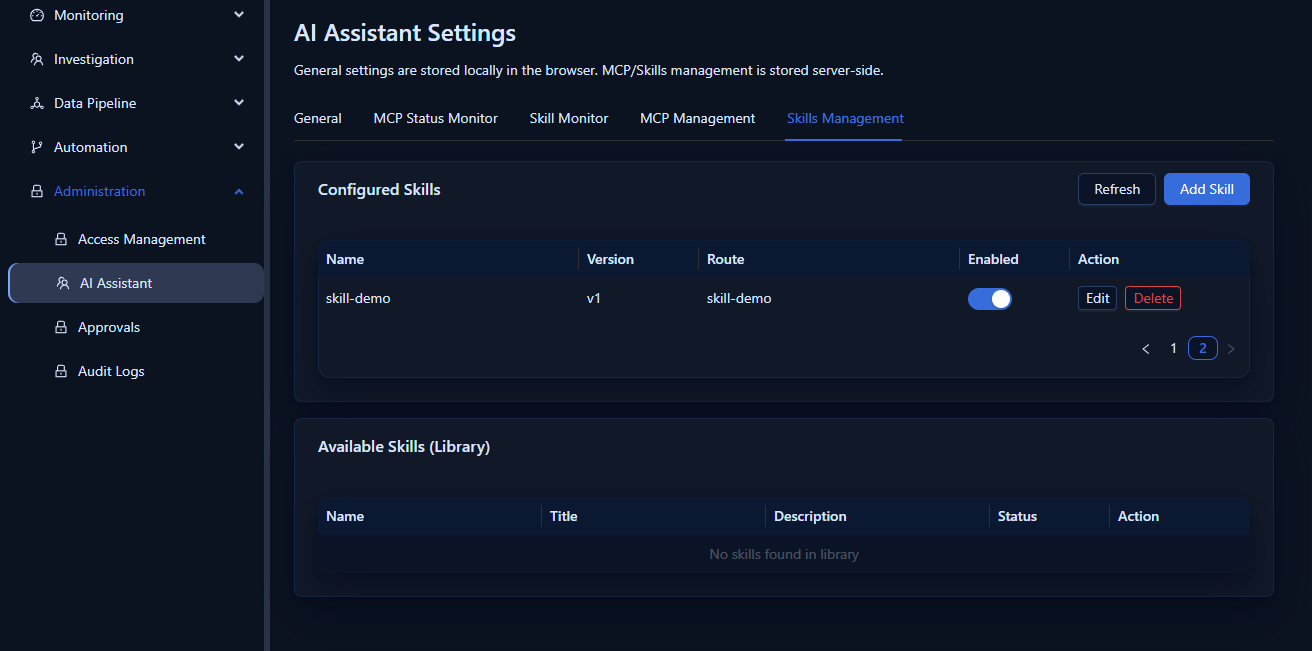
Adding a Skill
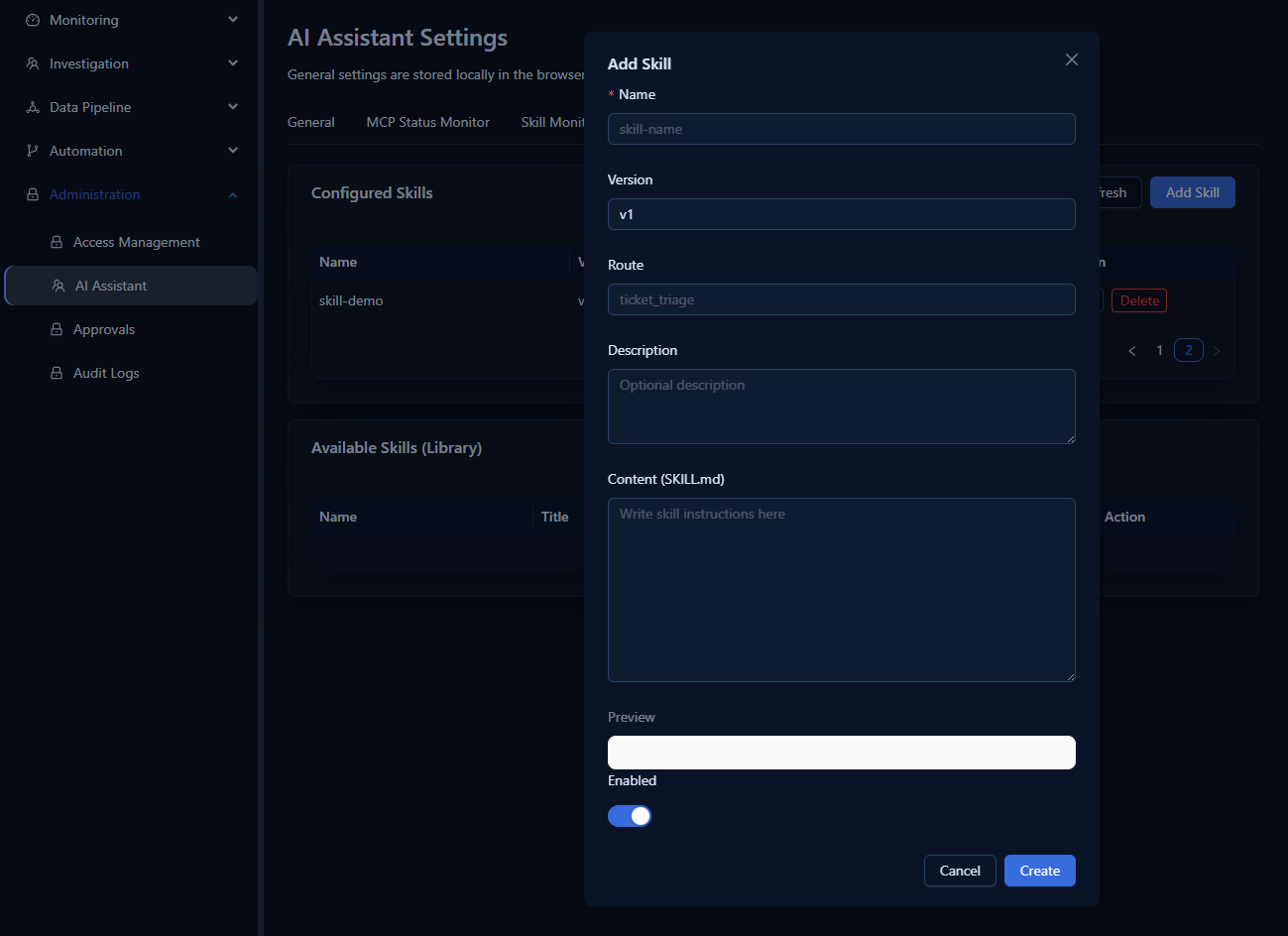
- Click Add Skill.
- Fill in the required fields:
- Name — skill identifier
- Version — semantic version string
- Route — API route the skill exposes
- Description — what the skill does (used by the AI to decide when to invoke it)
- Content (SKILL.md) — full skill definition in Markdown format
- Toggle Enabled to activate the skill.
- Click Save.
Skill Monitor
The Skill Monitor displays execution statistics for all registered skills.
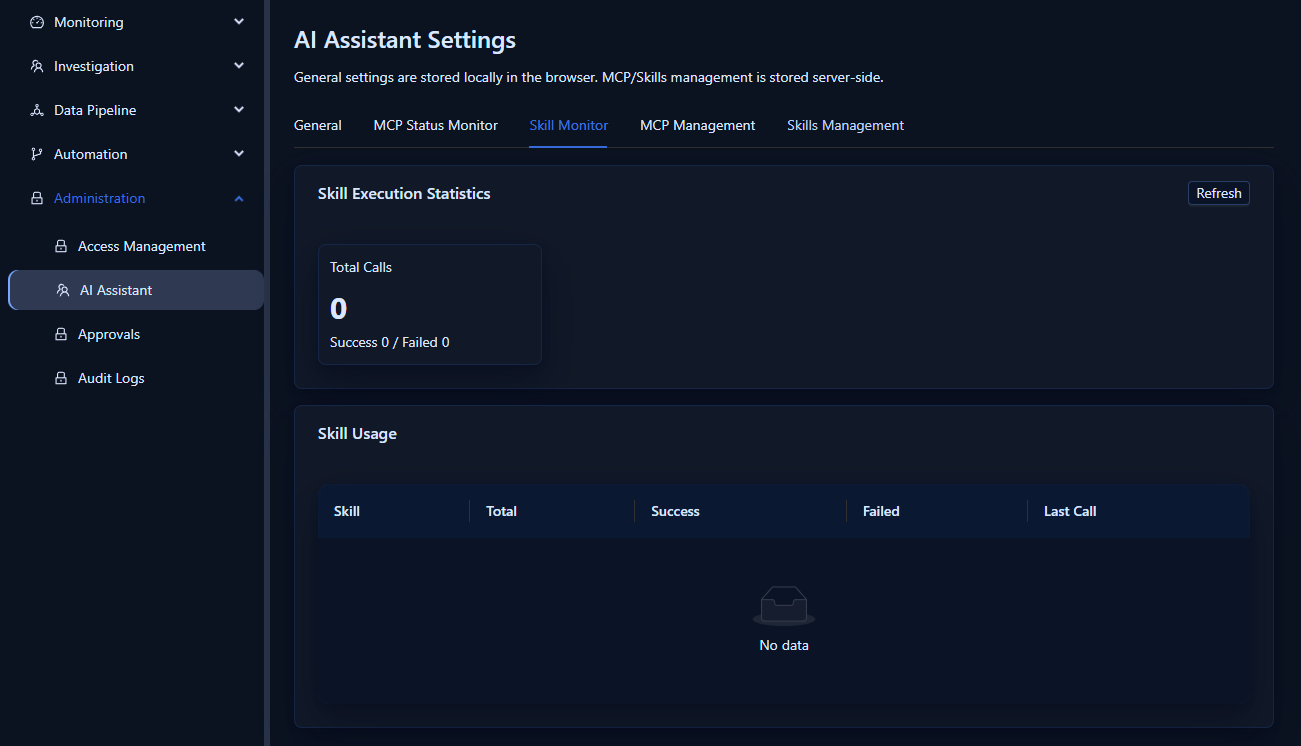
If a skill shows 0 invocations, it means no AI Agent session has yet triggered that skill. This is expected immediately after adding a new skill — invocations will appear once the AI determines the skill is applicable to an active investigation.
Using the AI Agent in Tickets
The AI Agent is accessed from within the ticket detail view.
Navigation: Investigation → Tickets → [any ticket] → Incident tab
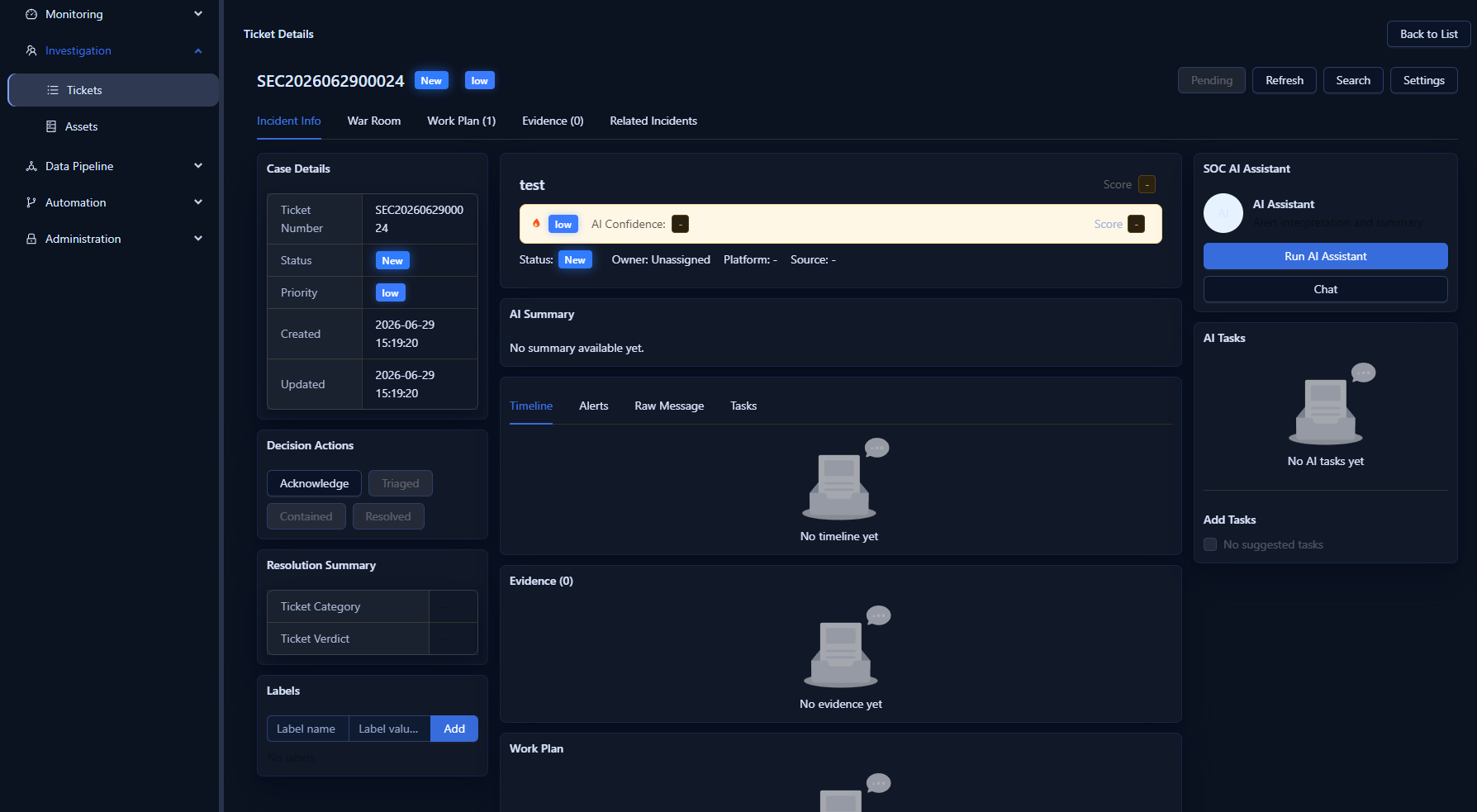
One-Click Analysis
Click Run AI Assistant (or the lightning bolt icon) to trigger automated analysis. The AI reads the ticket’s alert data, linked observables, and history, then generates:
- Alert Explanation — plain-language summary of what the alert means
- Risk Level Recommendation — suggested severity with rationale
- Completed Tasks — actions the AI has already performed
- Next Tasks — recommended follow-up for the analyst
AI Chat
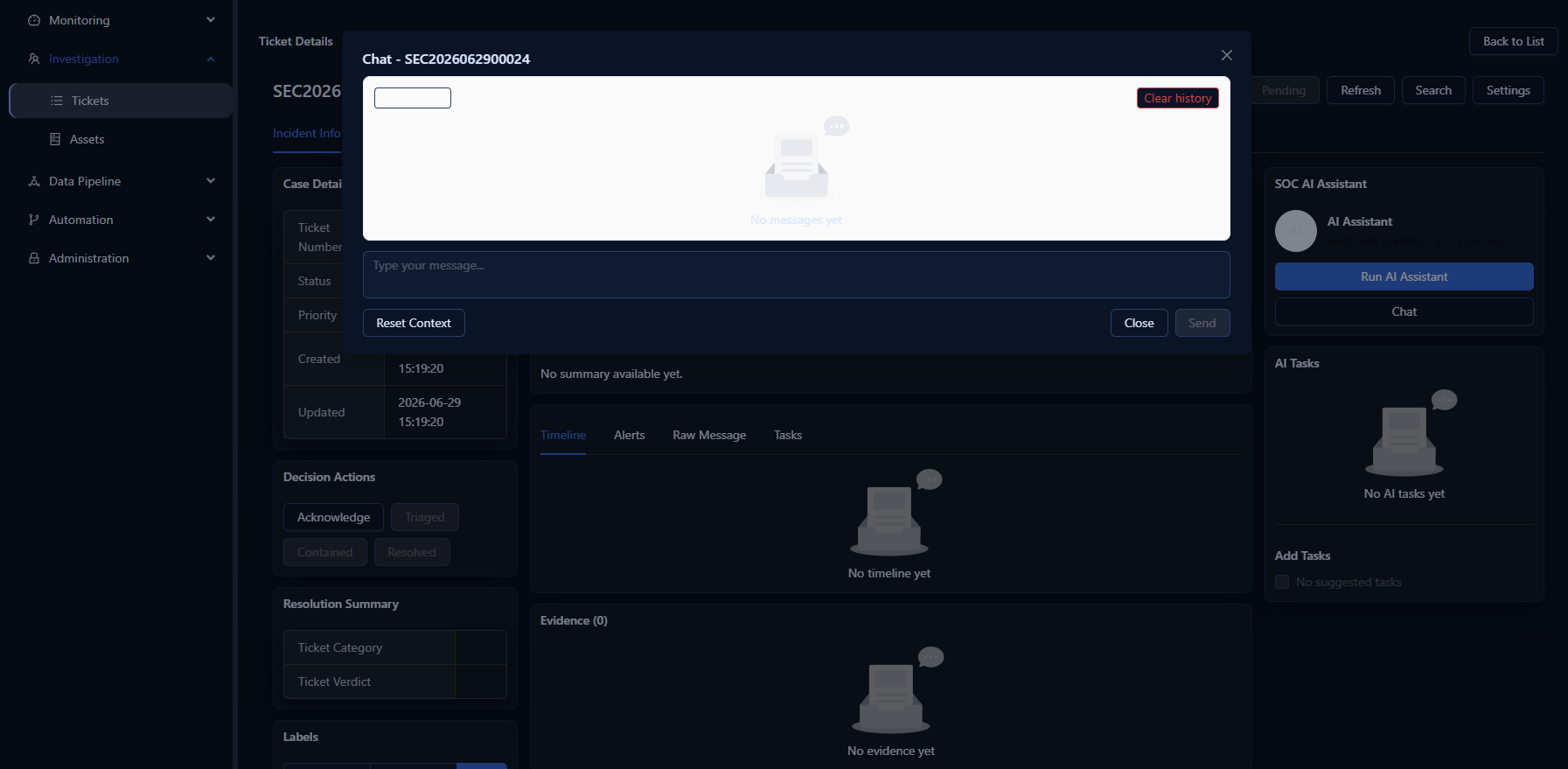
Click Chat to open an interactive conversation scoped to the current ticket:
- The chat context automatically includes ticket metadata and linked alerts.
- Type questions or instructions in the input field.
- The AI responds with analysis, recommendations, or structured output.
- Chat history persists per ticket.
Example chat prompts:
- “Extract all IOCs from this alert and format them as a list.”
- “Explain the attack chain implied by these alerts.”
- “What containment steps should I take first?”
- “Is this likely a true positive or false positive? Why?”
@ai Mention
In the Work Log comment box, type @ai <your question> to post an inline AI response directly to the work log thread.
@playbook Mention
Type @playbook <name> to invoke a callable workflow with the current ticket as context. The system executes the selected playbook and posts the result to the work log.
Recommended Workflow
- Open a ticket from the Tickets list.
- Manually review Case Details, Timeline, Alerts, Raw Message, and Evidence first.
- Click Run AI Assistant for an initial automated assessment.
- Use Chat to ask follow-up questions: extract IOCs, clarify alert logic, request response steps.
- Critically review all AI output before acting on it.
- Record only confirmed findings in comments, tasks, or resolution notes.
Troubleshooting
| Issue | Check |
|---|---|
| AI not responding | Enable AI Assistant toggle; verify API Key, Model, Base URL, Timeout; run Test Connectivity |
| MCP tools not invoking | Check MCP Status Monitor for failures; confirm the ticket scenario triggers tool usage |
| Skill invocation count stays at 0 | Skills invoke only when the AI determines they’re relevant — try prompting the AI to use specific skills |
| Chat gives inaccurate responses | The AI uses only the current ticket context; add more evidence to the War Room for richer analysis |