Use Case Management
Use Case Management is the detection engineering hub of Argus. It provides a centralized library for importing, creating, and publishing Sigma detection rules, along with field mapping management and a publish history audit trail.
Navigation: Data Pipeline → Detection
Scope of this guide: Rule management and field mapping configuration. Operations that modify system data — bulk uploads, rule deletions, publishing — should follow your team’s change management process.
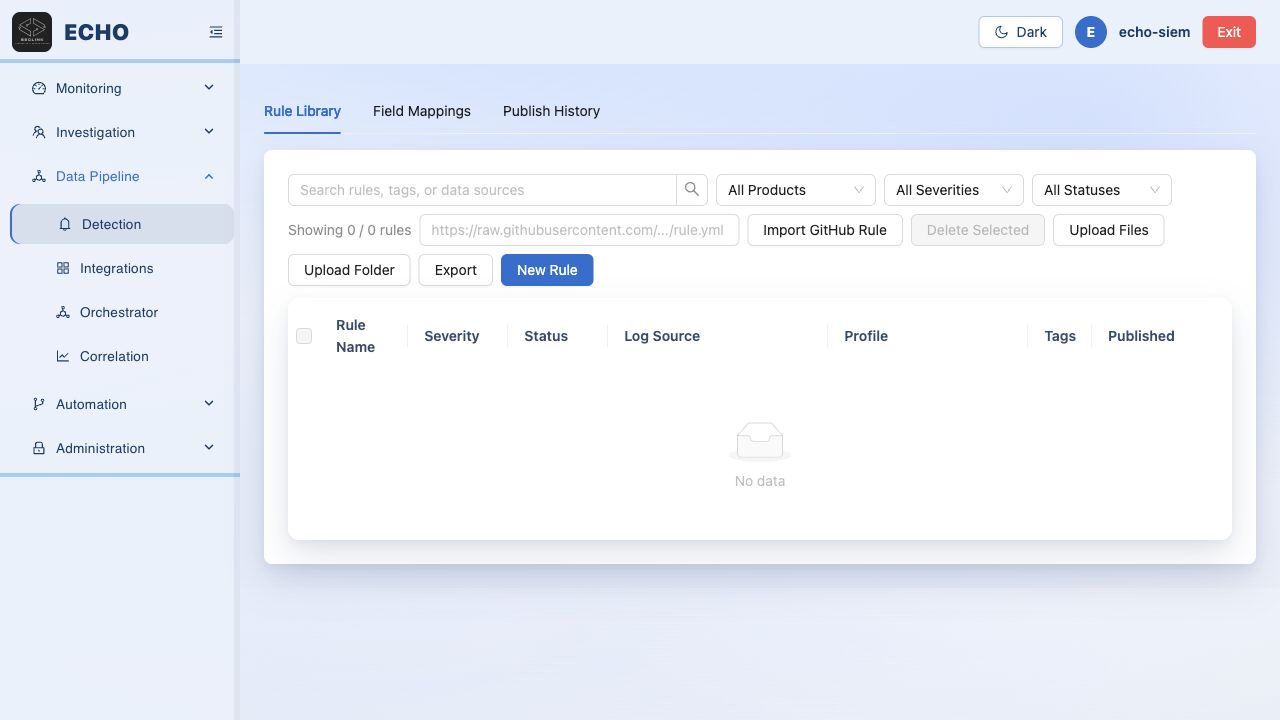
Quick Navigation
| Page | Path |
|---|---|
| Rule Library | Data Pipeline → Detection → Rule Library tab |
| Field Mappings | Data Pipeline → Detection → Field Mappings tab |
| Publish History | Data Pipeline → Detection → Publish History tab |
Rule Library
The Rule Library is the primary interface for managing Sigma detection rules. It supports search, filtering, bulk import, and manual rule creation.
Searching and Filtering
- Search box — filter by rule name, tags, or data source
- Product filter — narrow to rules for a specific product
- Severity filter — Critical, High, Medium, Low
- Status filter — Active, Draft, Disabled
Importing Rules
| Method | Description |
|---|---|
| GitHub Rule URL | Provide a URL pointing to a Sigma rule YAML on GitHub; the platform fetches and imports it |
| Upload Files | Upload one or more local .yml Sigma rule files |
| Upload Folder | Upload a folder of Sigma rules as a zip archive |
Use Export to download the current rule library. Delete Selected removes checked rules (requires confirmation).
Creating a Rule Manually
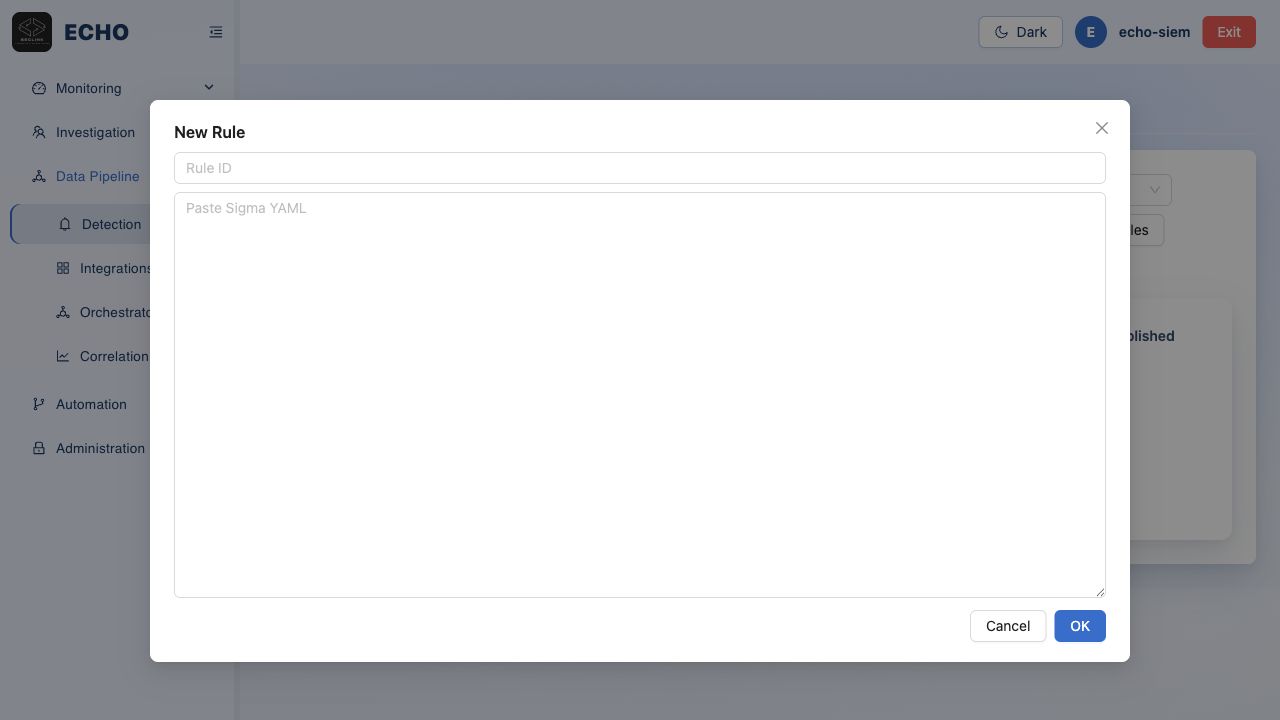
- Click New Rule.
- Fill in the required fields:
- Rule ID — unique identifier (e.g.,
aws_cloudtrail_root_login) - Sigma YAML — full Sigma rule definition
- Rule ID — unique identifier (e.g.,
- Click Submit.
Before submitting: Have a detection engineer review the YAML syntax, field references, and severity level. A malformed rule may fail at publish time rather than at creation.
Rule Naming Conventions
Follow a consistent naming scheme that includes the data source, detected behavior, and relevant entity:
<datasource>_<behavior>_<entity>
Examples:
aws_cloudtrail_root_loginwindows_defender_malware_detectedlinux_sudo_privilege_escalation
Field Mappings
Field Mappings translate Sigma’s canonical field names into the actual field names used by your query backends (Splunk, Elasticsearch). Mapping quality directly determines whether a rule produces accurate results.
Navigation: Data Pipeline → Detection → Field Mappings
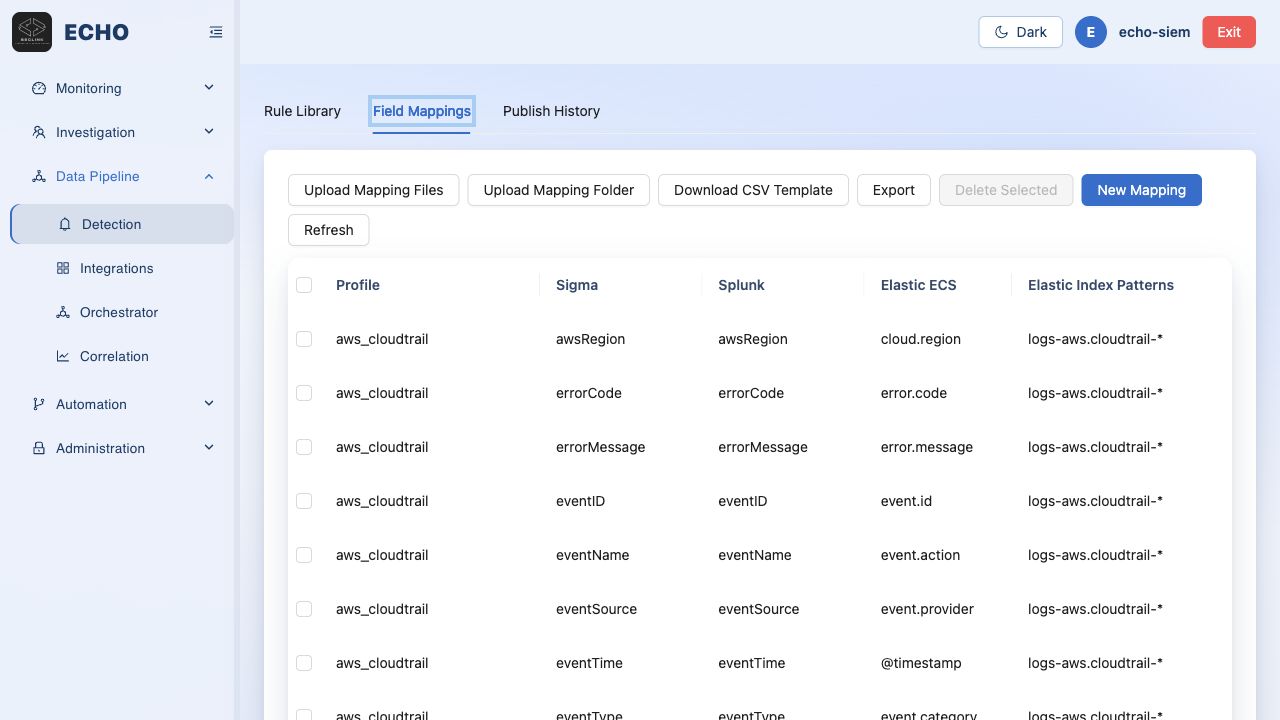
Mapping Structure
| Column | Description |
|---|---|
| Profile | A named mapping group, e.g., aws_cloudtrail or windows_sysmon |
| Sigma Field | The canonical field name used in Sigma rules |
| Splunk Field | The corresponding field name in Splunk |
| Elastic ECS Field | The corresponding ECS field name in Elasticsearch |
| Elastic Index Patterns | Which Elasticsearch indices this mapping applies to |
Creating a Field Mapping
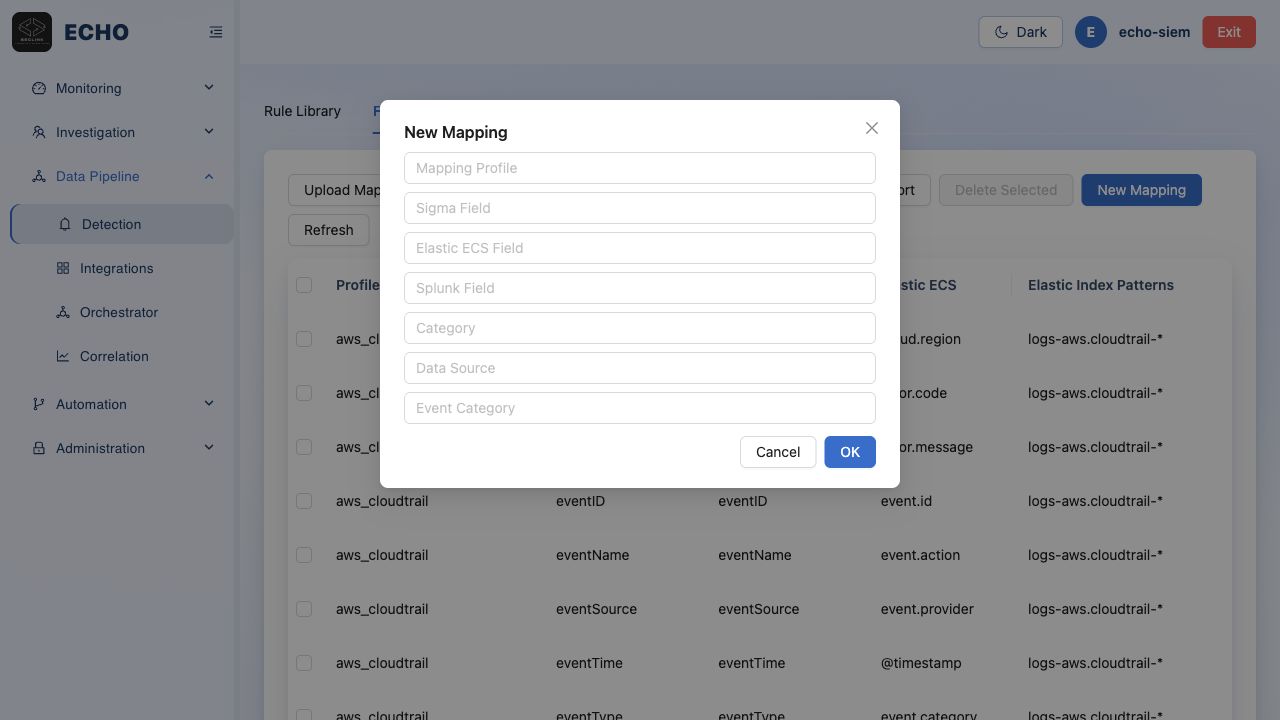
- Click New Mapping (or Download CSV Template to bulk-import via CSV).
- Select or enter the Profile.
- Enter the Sigma Field name.
- Fill in the corresponding Splunk and/or Elastic field names.
- Specify the Elastic Index Patterns (e.g.,
logs-*,alerts). - Click Save.
Mapping Best Practices
- Create a separate profile per data source (
aws_cloudtrail,windows_sysmon,linux_auditd). - Verify field names against your actual index template before publishing rules.
- Confirm that the Elastic Index Pattern covers the indices that actually hold your data.
- After adding a new mapping, re-publish affected rules to apply the updated field translations.
Publish History
The Publish History provides an audit trail of every rule publication action.
Navigation: Data Pipeline → Detection → Publish History
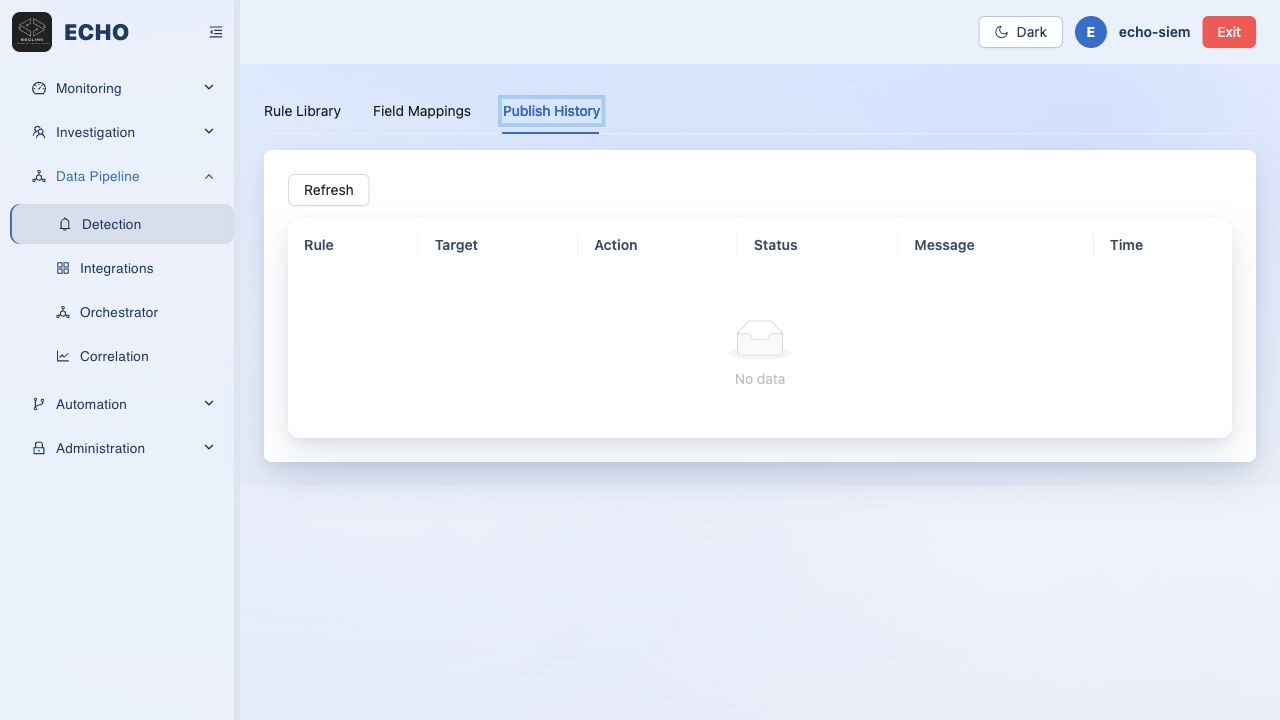
Column Reference
| Column | Description |
|---|---|
| Rule | Name of the published rule |
| Target | Publication target (e.g., Elastic deployment, Splunk instance) |
| Action | Operation performed (Publish, Update, Delete) |
| Status | Success / Failed |
| Message | Detailed result message; check here first when a publish fails |
| Time | Publication timestamp |
Diagnosing Publish Failures
When a publication shows Failed:
- Read the Message column — it typically identifies the exact error (invalid YAML, missing field mapping, target unreachable).
- Check that the rule’s Sigma YAML is syntactically valid.
- Verify that all fields referenced in the rule have mappings in the correct profile.
- Confirm the target backend (Elastic / Splunk) is reachable and the integration is configured correctly.
Use Case Management Checklist
Before publishing a new detection rule, verify:
- Data source is connected and ingesting (Data Pipeline → Integrations)
- Field mappings exist for every Sigma field used in the rule
- Rule name follows the
datasource_behavior_entityconvention - Severity level is appropriate — avoid defaulting all rules to Critical
- Rule has been tested on a dev/staging index to measure false positive rate
- Bulk operations (delete, bulk upload, publish) have change management approval